Raspberry Pi camera stream from Dotnet
This blogpost is an continuation of a previous article where I setup Buildroot linux to compile an OS for the Raspberry Pi 4. In this post I want to share my experience getting the camera to work, which was more effort than I originally expected. This is because there are multiple camera software stacks for the Raspberry Pi, one is based on V4L2 and the other is based on a newer libcamera stack. The presence of multiple stacks makes researching and debugging much harder than it needs to be, computers, sigh. Anyways, to get libcamera working on the rpi4 together with a few other nice-to-haves, the following packages need to be enabled in Buildroot:
BR2_PACKAGE_LIBCAMERA (for the camera!, this also requires enabling C++ and a newer kernel)
BR2_PACKAGE_FFMPEG (you will probably want this)
BR2_PACKAGE_HOST_EUDEV (this is required for libcamera)
BR2_PACKAGE_NANO (optional, but I prefer this over a plain vi(m))
BR2_PACKAGE_HOST_E2FSPROGS (to enable auto volume expansion)
At the end of /boards/raspberrypi4/config_4_64bit.txt, we will need to add the following parameters to enable the cameras:
# ...Default contents of config_4_64bit.txt
# Enable cameras
start_x=1
gpu_mem=128 # this is to enable high-res images (1080p) which error-out otherwise.
camera_auto_detect=1 # This enables libcamera to detect the camera and create a virtual unicam device.
I also added this script to /overlay/etc/init.d/S99resize-rootfs, which automatically resizes the partition to fill the entire SD Card upon the first boot.
#!/bin/sh
set -e

MARKER=/etc/.rootfs-resized

if [ -f "$MARKER" ]; then
    echo "Root filesystem already resized. Exiting."
    exit 0
fi

BASE_DEV=/dev/mmcblk0
PART_NUM=2
ROOT_PART="${BASE_DEV}p${PART_NUM}"

echo "Resizing partition $PART_NUM on $BASE_DEV to fill device..."

if [ -r "/sys/block/$(basename $BASE_DEV)/size" ]; then
    TOTAL_SECTORS=$(cat /sys/block/$(basename $BASE_DEV)/size)
else
    echo "ERROR: Cannot read total sectors from /sys/block/$(basename $BASE_DEV)/size"
    exit 1
fi

END_SECTOR=$((TOTAL_SECTORS - 1))

parted -s "$BASE_DEV" unit s resizepart "$PART_NUM" "$END_SECTOR"

echo "Resizing filesystem on $ROOT_PART..."
resize2fs "$ROOT_PART"

touch "$MARKER"
echo "Root filesystem resized successfully."

echo "Rebooting now..."
reboot
Then when the RPI is powered on, you can run the following commands to see the camera:
$ ls /dev/video*
/dev/video0   /dev/video10  /dev/video11  /dev/video12  /dev/video13  /dev/video14  /dev/video15  /dev/video16  /dev/video18  /dev/video19  /dev/video20  /dev/video21  /dev/video22  /dev/video23  /dev/video31

$ rpicam-still --immediate 1 -o test.png
[6:03:58.425413038] [493]  INFO Camera camera_manager.cpp:326 libcamera v0.5.1
[6:03:58.465940983] [494]  WARN RPiSdn sdn.cpp:40 Using legacy SDN tuning - please consider moving SDN inside rpi.denoise
[6:03:58.470713890] [494]  INFO RPI vc4.cpp:401 Registered camera /base/soc/i2c0mux/i2c@1/ov5647@36 to Unicam device /dev/media0 and ISP device /dev/media1
Preview window unavailable
Mode selection for 2592:1944:12:P
    SGBRG10_CSI2P,640x480/0 - Score: 7832
    SGBRG10_CSI2P,1296x972/0 - Score: 5536
    SGBRG10_CSI2P,1920x1080/0 - Score: 4238.67
    SGBRG10_CSI2P,2592x1944/0 - Score: 1000
Stream configuration adjusted
[6:03:58.474347001] [493]  INFO Camera camera.cpp:1205 configuring streams: (0) 2592x1944-YUV420/sYCC (1) 2592x1944-SGBRG10_CSI2P/RAW
[6:03:58.475181075] [494]  INFO RPI vc4.cpp:570 Sensor: /base/soc/i2c0mux/i2c@1/ov5647@36 - Selected sensor format: 2592x1944-SGBRG10_1X10 - Selected unicam format: 2592x1944-pGAA
[6:03:58.896173186] [494]  INFO V4L2 v4l2_videodevice.cpp:1901 /dev/video0[13:cap]: Zero sequence expected for first frame (got 2)
Still capture image received
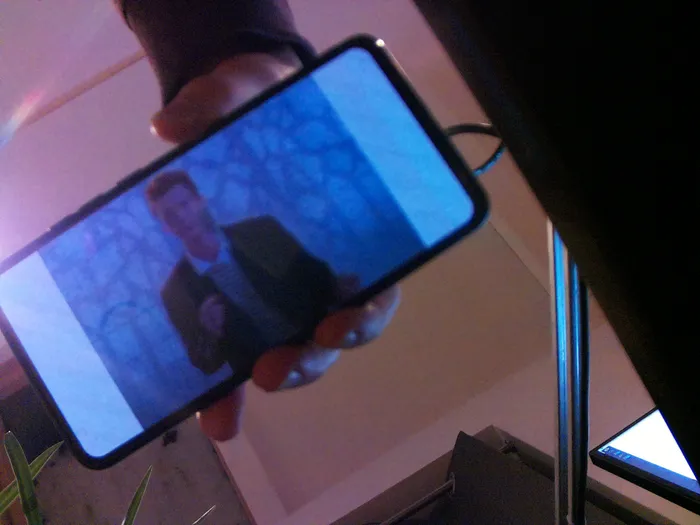
An example of the images that are captured, The quality leaves a lot to be desired, but that is beyond the scope of this blogpost:

The hard part starts now, when we want to access the camera from dotnet. Every single dotnet package that I found used V4L2, which does not work when the newer libcamera is enabled. They will either error out or produce pitch black images (or green with certain exposure settings). But the libcamera stack is newer and fully open-source, so I will use it regardless. A “work-around” that I found was using rpicam-vid that can create a TCP-stream. The following command creates a mjpeg stream on port 8888; which are just jpeg images send one after another.
$ rpicam-vid -t 0 --codec mjpeg --inline --listen -o tcp://0.0.0.0:8888 --width 1920 --height 1080 --buffer-count 2Capturing this stream in Dotnet is very simple, and can be done as follows:
var client = new TcpClient();
await client.ConnectAsync(host, port);
using var stream = client.GetStream();

var frameBuffer = new List<byte>();
bool foundStart = false;
byte[] buffer = new byte[8192];
byte previousByte = 0;

while (true)
{
    int bytesRead = await stream.ReadAsync(buffer, 0, buffer.Length);
    if (bytesRead == 0) {
        throw new IOException("Stream closed unexpectedly");
    }

    for (int i = 0; i < bytesRead; i++)
    {
        byte currentByte = buffer[i];

        if (!foundStart)
        {
            // Look for JPEG start marker (0xFF 0xD8)
            if (previousByte == JPEG_START_0 && currentByte == JPEG_START_1)
            {
                foundStart = true;
                frameBuffer.Clear();
                frameBuffer.Add(JPEG_START_0);
                frameBuffer.Add(JPEG_START_1);
            }
        }
        else
        {
            frameBuffer.Add(currentByte);

            // Look for JPEG end marker (0xFF 0xD9)
            if (previousByte == JPEG_END_0 && currentByte == JPEG_END_1)
            {
                // TODO: Do something with the jpeg image stored in buffer :)
                foundStart = false;
            }
        }

        previousByte = currentByte;
    }
}

client.Close();
process.Close();
Ofcourse its a little bit hacky to just spawn an external process and then use an internal network connection; but compared to creating libcamera bindings or using the legacy V4L2 interface, its a simple middle group. You can send the stored jpeg image directly to clients, as all browsers (and the FritzFon!) support mjpeg streams. Simple create an event for the buffer, and add a HTTP header/footer to every frame:
[HttpGet(Name = "video")]
public async Task Get()
{
    var bufferingFeature =
        HttpContext.Response.HttpContext.Features.Get<IHttpResponseBodyFeature>();
    bufferingFeature?.DisableBuffering();

    HttpContext.Response.StatusCode = 200;
    HttpContext.Response.ContentType = "multipart/x-mixed-replace; boundary=--frame";
    HttpContext.Response.Headers.Connection = "Keep-Alive";
    HttpContext.Response.Headers.CacheControl = "no-cache";
    try
    {
        _logger.LogWarning($"Start streaming video");
        _camera.NewFrameEvent += WriteFrame;
        await _camera.StartStreaming(HttpContext.RequestAborted);
    }
    catch (Exception ex)
    {
        _logger.LogError($"Exception in streaming: {ex}");
    }
    finally
    {
        _camera.NewFrameEvent -= WriteFrame;
        HttpContext.Response.Body.Close();
        _logger.LogInformation("Stop streaming video");
    }
}

private async void WriteFrame(object sender, byte[] jpeg)
{
    try
    {
        await HttpContext.Response.BodyWriter.WriteAsync(CreateHeader(jpeg.Length));
        await HttpContext.Response.BodyWriter.WriteAsync(jpeg);
        await HttpContext.Response.BodyWriter.WriteAsync(CreateFooter());
    }
    catch (ObjectDisposedException)
    {
        // ignore this as its thrown when the stream is stopped
    }
}

private byte[] CreateHeader(int length)
{
    string header =
        $"--frame\r\nContent-Type:image/jpeg\r\nContent-Length:{length}\r\n\r\n";
    return Encoding.ASCII.GetBytes(header);
}

private byte[] CreateFooter()
{
    return Encoding.ASCII.GetBytes("\r\n");
}
In future posts, I will add a simple SIP client to the dotnet application, and implement the ability to toggle relays. And at that point i’ve basically made a simple SIP video intercom.
By the way, running the dotnet application on the raspberry pi with Buildroot requires a few settings in the dotnet application, since the Buildroot image does not contain the dotnet runtime, and its not cross-compiled by default (imagine if cross-compilation and single file outputs were this easy in C++):
<PropertyGroup>
    <TargetFramework>net9.0</TargetFramework>
    <Nullable>enable</Nullable>
    <ImplicitUsings>enable</ImplicitUsings>

    <!-- The following allow the application to run on the RPI4  -->
    <InvariantGlobalization>true</InvariantGlobalization>
    <PublishSingleFile>true</PublishSingleFile>
    <RuntimeIdentifier>linux-arm64</RuntimeIdentifier>
  </PropertyGroup>
And if you do not want to constantly copy-paste the output, and run it on the RPI manually, I highly recommend making a small test script that automates it. This is my test script:
set +e
pushd api
dotnet publish -c Release -r linux-arm64
# TODO: Replace the root password :)
sshpass -p 'root' ssh root@10.8.0.41 rm -rf ./api/*
sshpass -p 'root' scp ./bin/Release/net9.0/linux-arm64/publish/* root@10.8.0.41:/root/api/
sshpass -p 'root' ssh root@10.8.0.41 ./api/api --urls http://10.8.0.41:5000/
popdIf you spot any mistakes or if you would like to contact me, visit the contact page for more details.
